Reporting
We offer a series of reports to help maintain department compliance with procurement policies and guidelines.
PROCUREMENT Dashboards

Procurement Dashboard

HUB Dashboard
Queries
Use the following reports to maintain department compliance with procurement policies and guidelines. These reports are available in the Queries & Reports Tile on the Financial System Homepage.
Procurement
All POs by Department
- Audience: Business Officers or Accounting Technicians
- Security Required: None
- Description of Report: Provides a listing of all POs for a 2-, 4- or 6-digit Department ID. It includes detailed information at the header level of the PO, including PO ID, PO date, PO expiration date, PO type, PO status, supplier name, original PO amount and current encumbrance amount.
INSTRUCTIONS
1. Navigate to MyPack Portal > Financial System Homepage.
2. Click on the Queries and Reports tile.
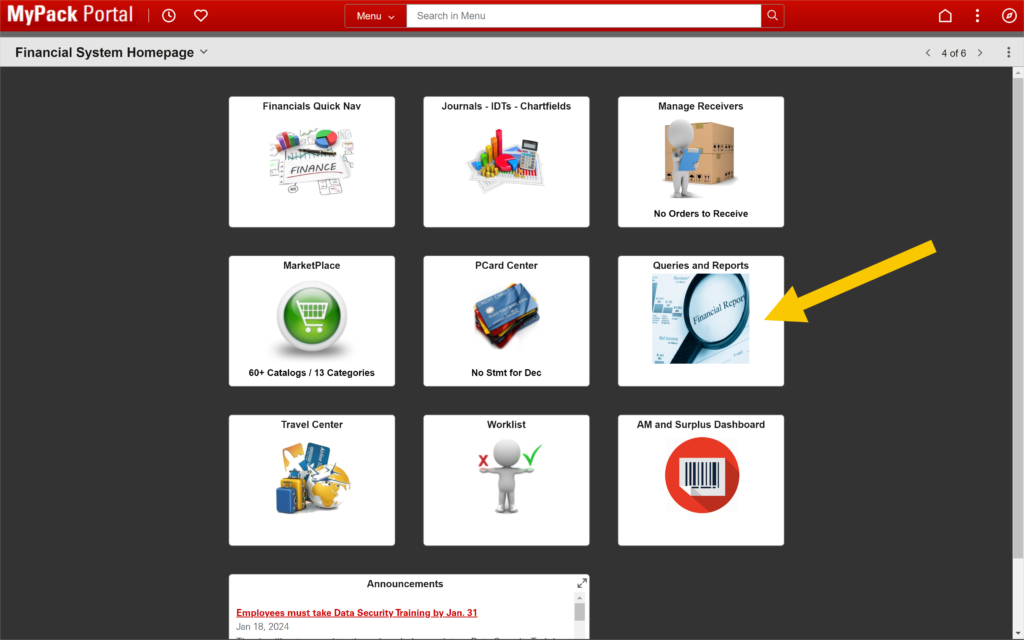
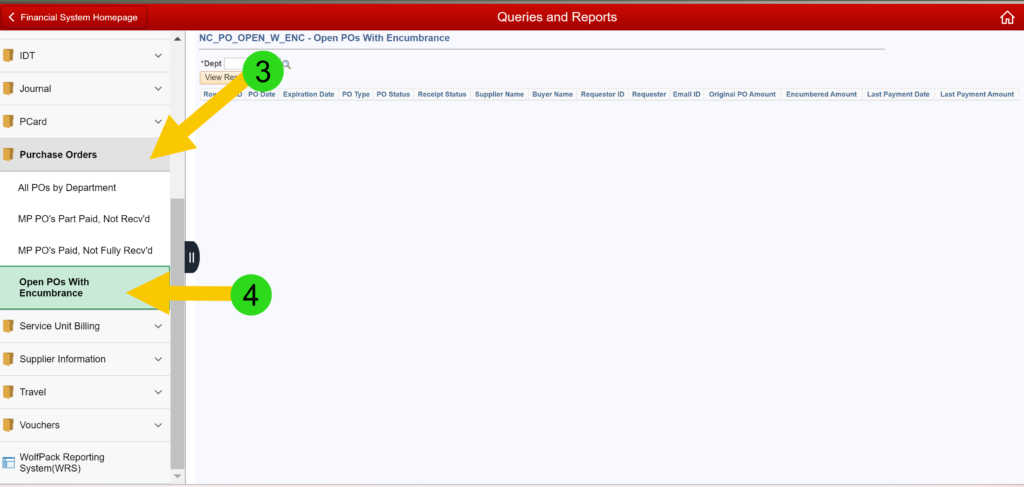
3. Click on Purchase Orders in the menu on the left.
4. Select Open POs with Encumbrance.
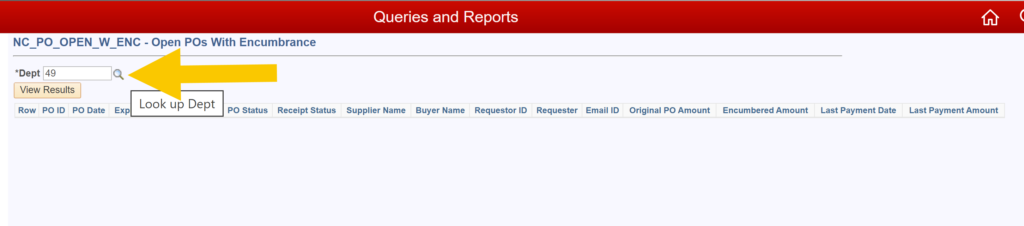
5. Enter the two-digit Dept ID and click on the magnifying glass to initiate the search.
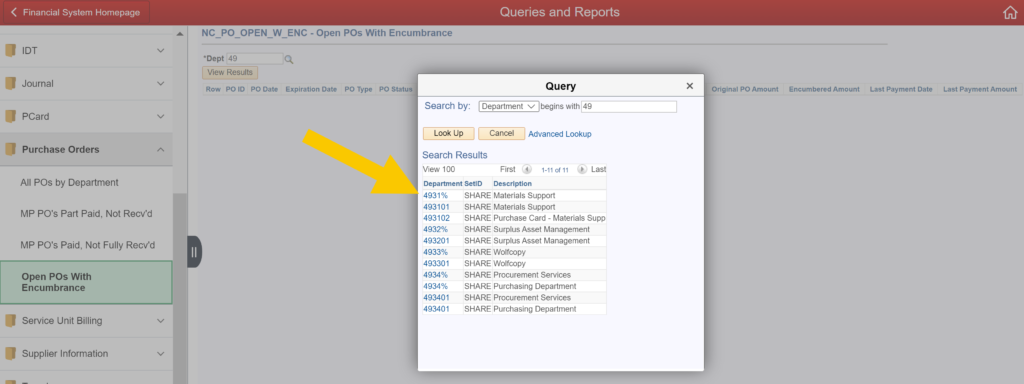
6. Select the four- or six-digit Department ID from the pop-up window.
8. Click on View Results.

9. All open POs with encumbrances for the selected department will be displayed. Click on Excel SpreadSheet to export the query.
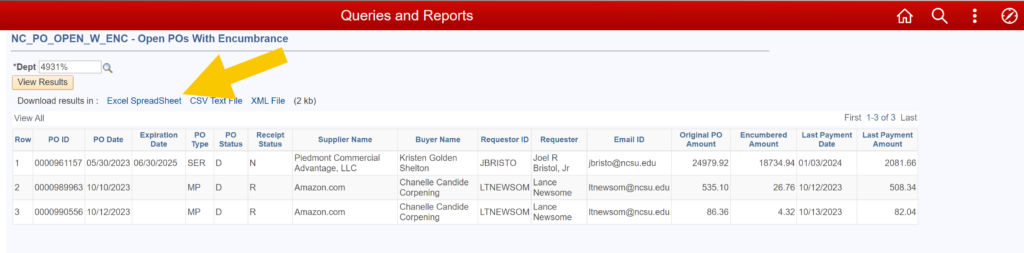
Open POs with Encumbrance
- Audience: Business Officers or Accounting Technicians
- Security Required: None
- Description of Report: Provides a listing of all POs for a 2-, 4- or 6-digit Department ID. It includes detailed information at the header level of the PO including PO ID, PO date, PO expiration date, PO type, PO status, supplier name, original PO amount and current encumbrance amount.
INSTRUCTIONS
1. Navigate to MyPack Portal > Financial System Homepage.
2. Click on the Queries and Reports tile.
3. Click on Purchase Orders in the menu on the left.
4. Select Open POs with Encumbrance.
5. Enter the two-digit Dept ID and click on the magnifying glass to initiate the search.
6. Select the four- or six-digit Department ID from the pop-up window.
8. Click on View Results.
9. All open POs with encumbrances for the selected department will be displayed. Click on Excel SpreadSheet to export the query.
MarketPlace
MarketPlace POs Part Paid Not Received
- Audience: Business Officers
- Security Required: None
- Description of Report: Provides a listing of all MarketPlace POs that have had at least one payment (partial) against them but have not had any receivers entered.
MarketPlace POs Paid Not Fully Received
- Audience: Business Officers
- Security Required: None
- Description of Report: Provides a listing of all MarketPlace POs that have been fully paid but the end user has not completed the receiving report required to close out the PO.
INSTRUCTIONS
1. Navigate to MyPack Portal > Financial System Homepage.
2. Click on the Queries and Reports tile.
3. Click on Purchase Orders in the menu on the left.
4. Select MP POs Paid Not Fully Received.
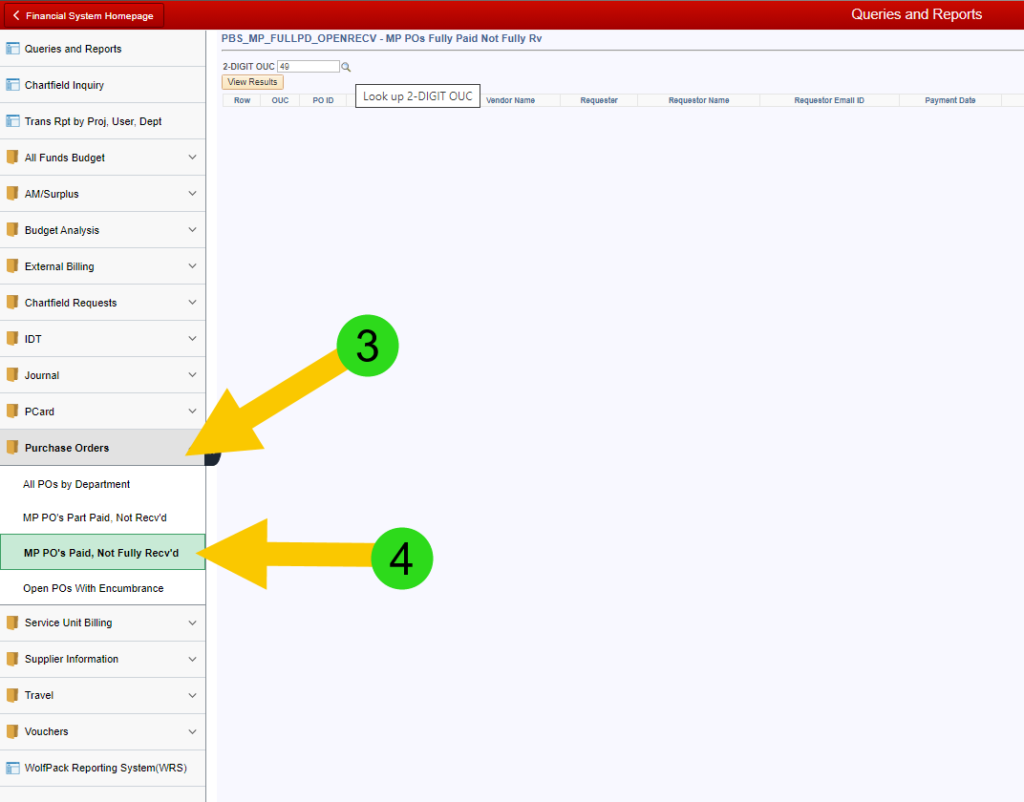
5. Enter the two-digit Dept ID and click on the magnifying glass to initiate the search.

6. Select the four- or six-digit Department ID from the pop-up window.
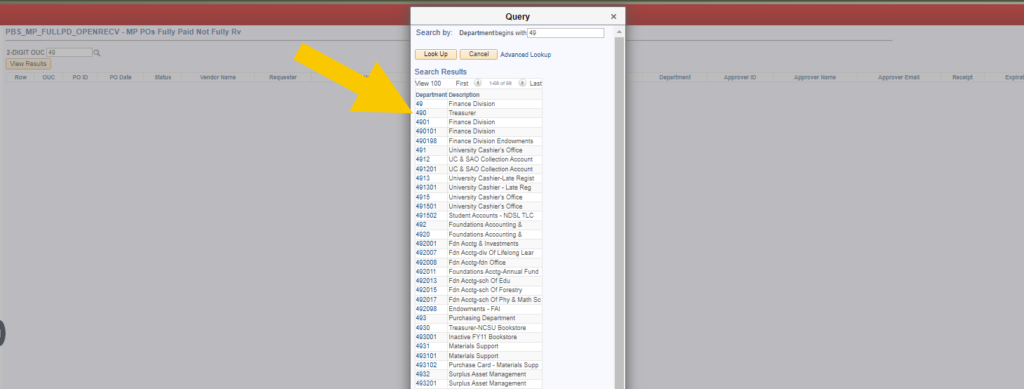
8. Click on View Results.

9. All MP POs Paid Not Fully Received for the selected department will be displayed. Click on Excel SpreadSheet to export the query.

FedEx Charges by Dept ID
- Audience: Business Officers and Accounting Technicians
- Security Required: None
- Description of Report: Provides a listing of all MarketPlace FedEx charges by 2-, 4- or 6-digit Department ID. The listing includes the transaction number, the billing date, the transaction date, the FedEx tracking number, the 6-digit department ID, the 6-digit department name, the Project ID, the GL account code and the amount.
Supplier Information
Supplier Payments by Department
- Audience: Business Officers or Accounting Technicians
- Security Required: None
- Description of Report: Provides a listing of all PO and non-PO payments for a specific department ID with a date prompt that gives flexibility in reviewing a month, six months, a year, etc. The list includes the Supplier ID, the PW connection status, last activity date, the supplier name, address sequence number, address, total spend and initiating 6-digit Department IDs.
Card Services
My Cards to Reconcile
- Audience: PCard Reconcilers
- Security Required: PCard Reconciler Role in SAR
- Description of Report: Displays a listing of all active and on-hold PCards that you are currently a reconciler for and includes data elements such as default Project ID, spending limits, spend groups, supervisor and PCard Statement Approvers for each card.
My Cardholder Statements
- Audience: PCard Reconcilers
- Security Required: PCard Reconciler Role in SAR
- Description of Report: Requires a billing date to be entered and will display any statement not yet submitted for that billing period, if one is required. If no statement is needed, it will not be displayed in the report. Additionally, it will reflect how many transactions were on the statement, how many have images, how many do not have images, what step is pending in the process and who are the approvers for that step
PCards by Dept ID
- Audience: Business Officers
- Security Required: Approve Credit Card Requests Role in SAR
- Description of Report: Allows viewing a listing of all active and on-hold cards by 2-, 4- or 6-digit Department ID that you have OUC security for with the role PCard Approver. It will include data elements such as default Project ID, spending limits, spend groups, supervisor and statement approvers for the card.
Statement Status by Dept
- Audience: Business Officers
- Security Required: Approve Credit Card Requests Role in SAR
- Description of Report: Allows you to view a listing of all statements not yet approved (if one is required) by 2-, 4- or 6-digit Department ID for any particular billing cycle. The security for this report works the same as PCard by Dept ID in that it will show any cards that you have OUC security for with the role PCard Approver. Additionally, it will reflect how many transactions were on the statement, how many have images, how many do not have images, what step is pending in the process and who the approvers are for that step.