Contract Review Guidelines
General Guidelines
The Procurement Services Contract Review team must review all purchase agreements, no matter the value, when there is a written contract, agreement or purchase order involved.
Getting Started
- Select a contract template from the Standard University Agreements if applicable.
- Complete and submit a Contract Review Form.
- Participate in the negotiation process, if necessary:
- The submitted contract and supporting information are reviewed for standard legal terms and conditions.
- Negotiations may be required between the department, the contractor, Contract Review Services and the Office of General Counsel.
- All necessary modifications are made to the contract.
- The department will receive an email notification when the contract is fully signed. The signed agreement can be found in the contract system under the Documents tab as a part of that contract record.
- Administer and monitor the contract throughout its terms. Refer to the Contract Administration Guide.
Independent Contractor Guidelines
An independent contractor is a person, business or corporation that provides goods or services to the university under terms specified in a written contract or agreement. Unlike an employee, an independent contractor does not work regularly for an employer but works when required. It is important to look at the scope of the work and determine if it is comprised of tasks best accomplished by an employee. The OGC developed a checklist that will aid with this determination.
NC State University cannot pay employees as independent contractors.
- Complete the Checklist for Determination of Independent Contractor Status, and evaluate the employment status results.
- Upload the completed checklist with your contract submission, with all independent contractor agreements where the contractor is an individual.
- Independent contractor or employee? More guidance is available on the IRS website.
- Payments to individuals for services? Review the Changes to Independent Contractor Payments article.
| Service Agreement Type | Definition | Next Step |
|---|---|---|
| Personal | A professional who provides expert advice in a particular area, such as management, accountancy and finance. | 1. Complete a Contract Review Form. 2. Provide a Waiver of Competitive Bidding Memo for services above $5,000 at the time of submission. |
| Academic | Professional instruction, curriculum development or academic-oriented research. | 1. Complete a Contract Review Form. 2. Provide a Waiver of Competitive Bidding Memo for services above $5,000 at the time of submission. |
| Administrative/ Consultant | Professional instruction, curriculum development or academic-oriented research | 1. Complete the Contract Review Form. 2. Provide the scope of work and specifications for the competitive bid process or provide a Waiver of Competitive Bidding Memo at the time of submission. 3. Initiate a requisition if the cost is above $5,000. |
Contract Administration Guidelines
- Each department is responsible for ensuring that the contractor meets all contractual obligations.
- While administering a contractual project, the department must process the invoices for payment and monitor the funds spent against the contract.
- If changes to the contract are required after it is fully executed, use the contract amendment form to enumerate the specifics such as the cost, term or scope of work.
- Complete the Contract Amendment Form.
- Submit a Contract Review Form and select “Amendment” as the record type.
- Upload the completed amendment form as your main document (attachment type = Contract Amendment).
Navigating the Contract Review System
Refer to the following guidelines for navigating the contract review process before, during and after submitting a contract.
Gather Contract Details
Before submitting a contract request for review, make sure you have the following information:
- Contract Type
- Contract Value
- Project ID (required for all expense contracts)
- Supplier ID (required for all expense contracts). Refer to the following Knowledge Base article for instructions: How do I invite a new supplier to PaymentWorks?
- Vendor contact name and email (for questions and to route the DocuSign for external signature)
- Contract document, including scope of services (if appropriate)*
- Waiver of Competitive Bidding (Sole Source) (needed for services above $5,000)
- Independent Contractor Checklist (if appropriate)
Once you have these items, you are ready to submit your contract for review!
*The preferred method of upload is an MS Word document (unless on Standard University Agreements).
Find a Supplier ID/Onboard a New Supplier
When submitting a contract for review, a supplier name is required. For all expense contracts, a Supplier ID is also required. Having a Supplier ID means that the supplier has been set up in the Financial System. For zero-dollar-value and revenue-generating contracts, a Supplier ID is not required and the supplier name can be entered in the Supplier Name field.
To find an existing supplier and Supplier ID for your contract:
- Start typing the name of the supplier into the Supplier Name field.
- Use the autofill drop-down menu to select your supplier if found.
- If not found, click on the magnifying glass to open the “Look Up Supplier” pop-up window and see all records corresponding to that name or keyword.
- Once found, click the “Select” button to add the supplier to your contract review form.
- The supplier ID will auto-populate and you will be able to submit the form upon completion of other required fields.
What happens if I can’t find my supplier?
This means that the supplier has not been registered in the Financial System. You must set them up with Supplier Information Management. Here’s how…
Onboarding a New Supplier
To onboard a new supplier, you will need to send them an invitation to register with PaymentWorks. Once the supplier has completed the registration process, you will receive an email with their Supplier ID. The new supplier will be available in the contract system the day after you receive their Supplier ID.
Disable Pop-Up Blocker for Contract Portal
The first time that you authenticate into the new contract management system in any browser, you will have to disable the pop-up blocker. Please follow the instructions below.
(Note: These step-by-step instructions are for Chrome.)
- Navigate to the contract system via the Contract Review webpage or in the Portal using the Purchasing Contracts tile.
- A pop-up window will appear in the middle of your screen with a warning message. Don’t click on the OK button yet.
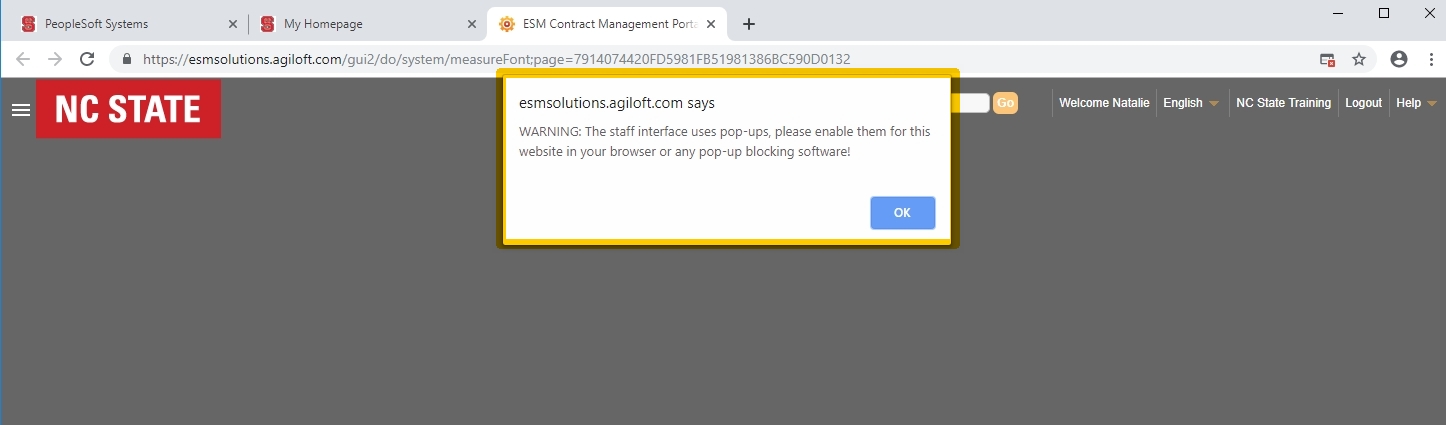
3. In the browser URL bar, to the right you will see a pop-up blocker notification. Click on this pop-up blocker icon.
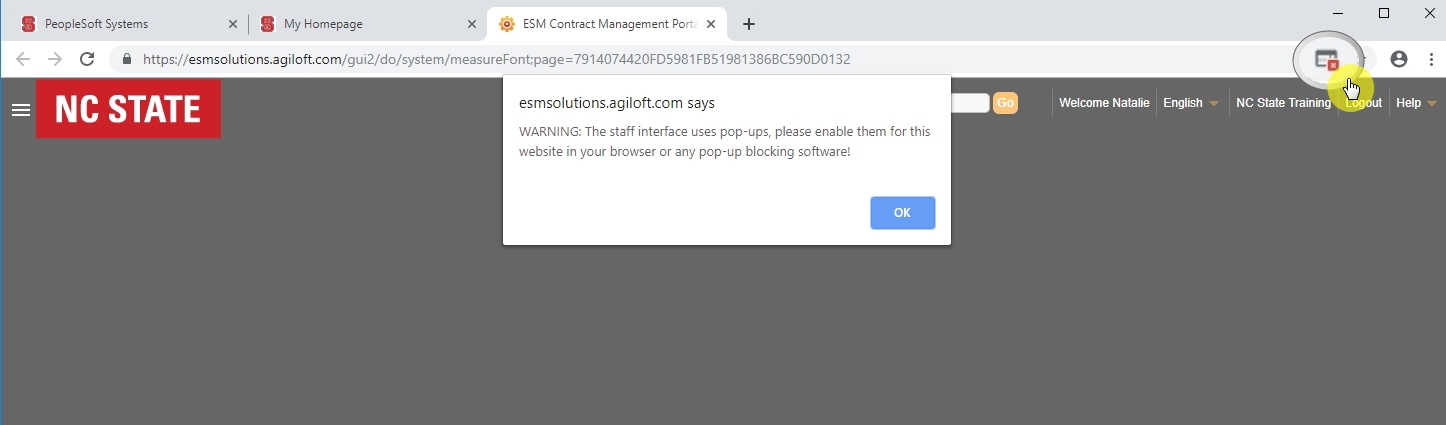
4. In the new pop-up blocker window, select the “always allow…” button and click the “Done” button.
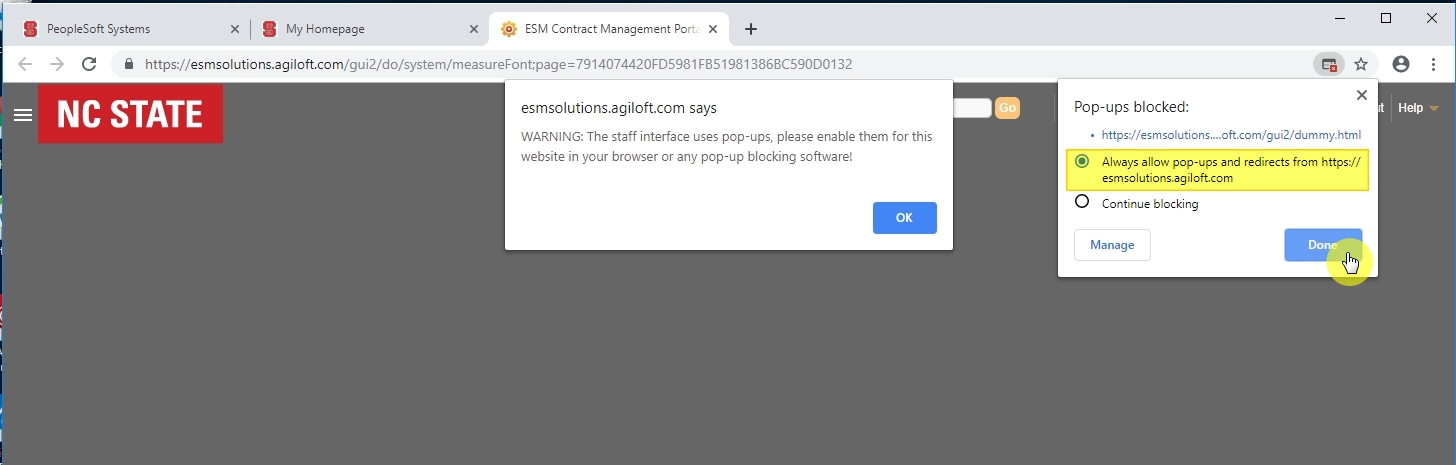
5. Now you can click the “OK” button in the warning message pop-up window.
How do I submit a contract request for review?
To add the tile to one of your homepages in Financials:
- Click the three lines next to the home button (aka the hamburger)
- Select “Personalize Homepage.”
- Select “Add Tile.”
- Enter “Purchasing Contracts.”
You can also find the link to the system via the Navigator: Financial Systems>Procurement>Purchasing Contracts.
How do I attach a document to my contract request?
Watch the video tutorial: Attach a Document to My Contract Request.
How do I check on a contract approval status?
Watch the video tutorial: Check on the Approval Status
What do the different contract statuses mean?
Each contract has a status that provides a general idea of where the contract is in the review process.
Here’s what each of them mean:
| CONTRACT STATUS | DESCRIPTION |
|---|---|
| Draft | An unsubmitted contract or a previously submitted contract that was rejected during the approval process |
| Pending Approval | The submitted contract is currently being reviewed by the necessary approvers and is still awaiting full approval |
| Waiting on Department | Procurement Services needed further information, so they reached out via email or phone and are awaiting the department’s response |
| Negotiating with Supplier | Procurement Services needed further information, so they reached out via email or phone and are awaiting the department’s response |
| Approved | The contract has been reviewed and approved by all approvers and the DocuSign envelope is being sent out to the appropriate signatories |
| Pending Signature | A DocuSign envelope has been sent to the signing parties and is awaiting signature |
| Signed | The contract has been fully signed by all parties and the requester has been notified by email |
| Active | The signed contract’s term is currently in effect |
| Expired | The signed contract’s term is no longer in effect |
Why is my contract still in a draft status/why is it not moving?
Your contract is in a draft status because you haven’t submitted for review yet. Each form has a save/cancel buttons that allow you to create drafts of contracts, but in order to submit these drafts for review, you must click the green “Submit” button.
Here’s where it’s located on the form. Note: You must have all required fields completed and a document attached in order to submit a contract request.
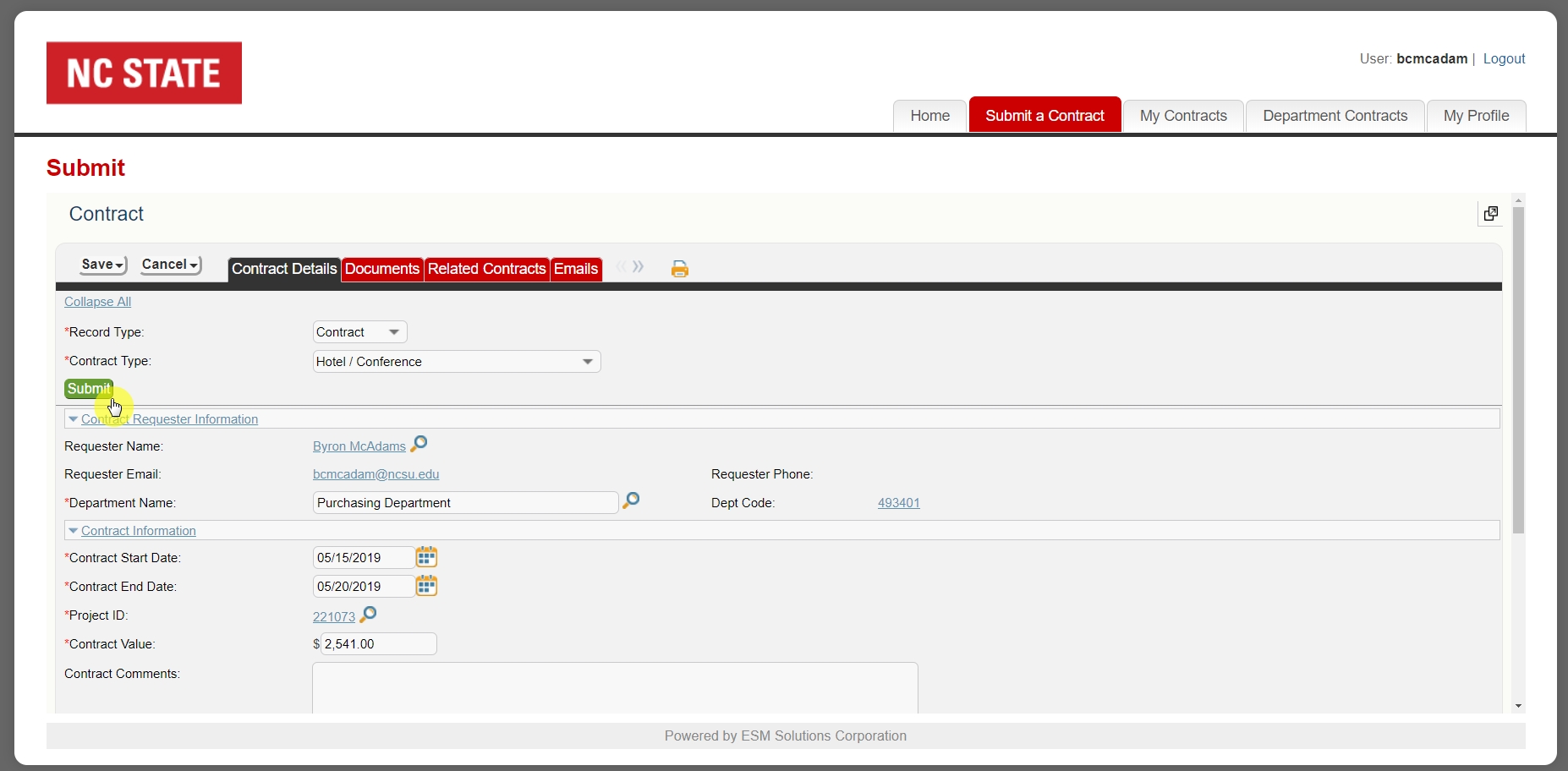
*Contracts may also be in a status of draft because the contract was rejected by an approver due to missing or incorrect information. You will receive an email regarding the rejection and any action needed. The contract is reset to draft so you can edit and resubmit if appropriate.
Why can’t I edit my contract?
Once you submit your contract for review, you can no longer edit the contract. You will be able to view exactly where the contract is in the approval process. Don’t worry, you will receive an email once the document is signed.
If you need to make a change to the contract request, please contact Contract Review Services.
Where do I find my signed agreement?
The signed agreement is sent to each of the signatories and you, the requester, are sent an email notifying you the contract has been signed.
In that email, there is a hyperlink to view the contract in the contract management system.
- Click on the link in the email
- Click on the “Documents” tab
- Under the Contract Documents section, find the new attachment labeled “Signed Agreement”
- Click on the attached file to view and download a copy of the signed agreement
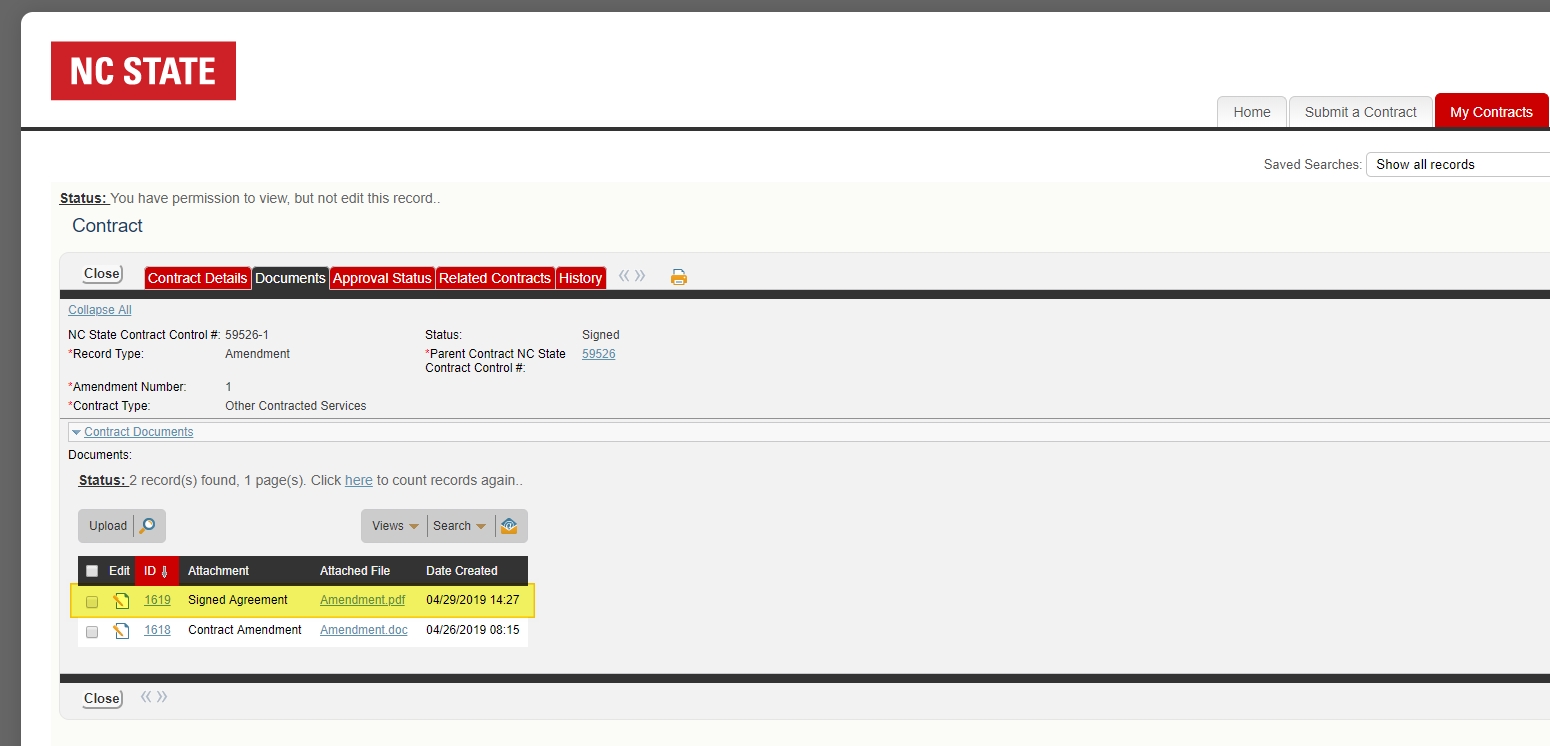
You can also use the My Contracts tab to monitor the status of all contracts.
Oops…I uploaded/attached the wrong document to my contract draft. How do I replace it?
Navigate to your contract draft and click on the “Documents” tab.
- Click on the edit icon of the document you need to replace
- Click the “Attach/Manage” link
- Click the trash can icon to remove the document you accidentally uploaded
- A message will appear asking you to delete the latest version or all versions. Select Delete All Versions if you are trying to replace the whole document (and not just a version)
- The document will be removed from that window. Click the “Attach Files” button to browse out and select the correct document
- Click “Finish” and “Save”
- You will see the old document has been replaced by the newly uploaded document
Resources
Guides, Procedures and Training
Questions?
Contact the Contract Review Team.